

Publish a branded support Page
Prepare a dedicated chat page, publish it, and check the experience your customers receive.
Use a Page when you want a direct link to your agent, such as a support destination in an email or on your website. This walkthrough publishes a public Page for an existing chat agent.
Before starting, prepare and test your agent. Publishing a Page gives customers access to that agent's existing behavior and knowledge.
1. Check the Page is ready to configure
Open your agent's Publish screen and choose Pages. In Overview, check the assigned agent and the readiness messages for its chat channel and Pages hosting.
Set the Managed URL slug to a name customers will recognize. If hosting or the chat channel is unavailable, resolve the readiness message before publishing.
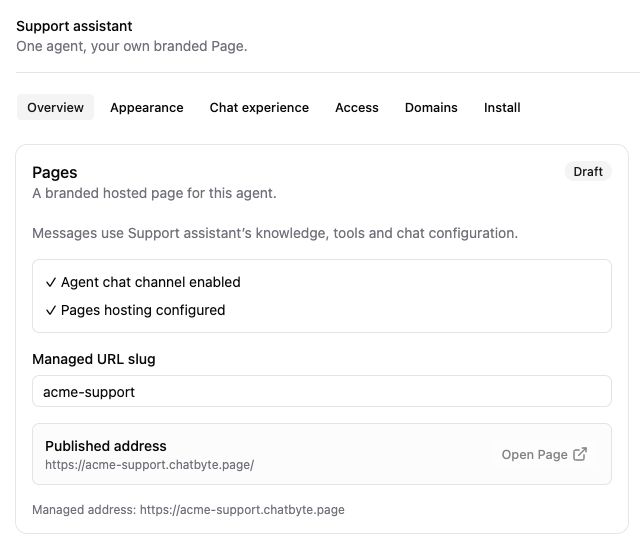
The Pages editor with an example support agent and address.
- Move through the setup. Appearance, Chat experience, and Access configure what customers see and who can enter.
- Check readiness. The agent’s chat channel and Pages hosting must be available.
- Choose the address. Set the managed slug, then save and publish the change.
2. Match your brand
Open Appearance. Choose a Display name, upload your logo and favicon, and choose a Theme mode. Adjust the colors to match your website while keeping text readable.
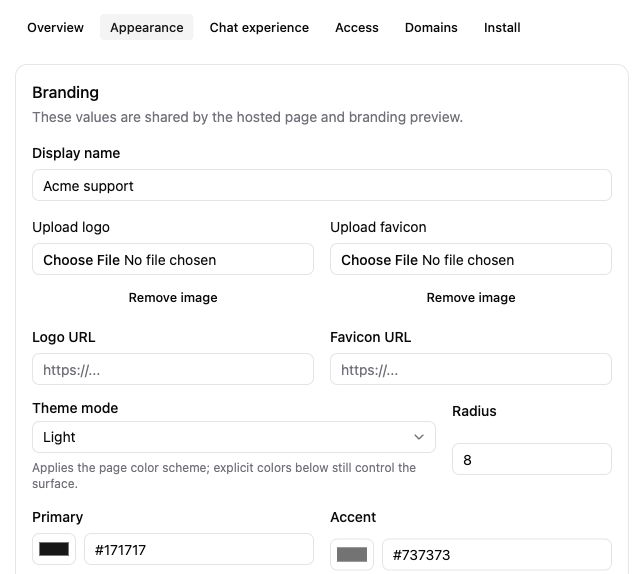
Page appearance settings. The preview area is outside this close-up.
- Name the customer experience. The Page’s display name can differ from the internal agent name.
- Choose the theme. Set the page color scheme, then review your explicit color choices below.
- Set your brand color. Primary controls the customer’s message tint, active controls, and fallback avatar.
Use the style preview's Welcome and Conversation views, plus its desktop and mobile controls. The preview uses sample content; you will test real answers after publishing.
3. Write the welcome and choose access
In Chat experience, write a short welcome and useful starter prompts. Review the composer and attachment settings for your use case.
In Access, choose public access for this walkthrough. If you need sign-in, follow Private Pages and have your developer connect authentication before launch.
4. Save, then publish
Choose Save draft, then Publish saved draft. Saving keeps an editable draft; publishing makes the saved configuration available to visitors.
After later edits, repeat both steps to update the public Page. Use Unpublish if you need to stop access to it.
5. Test the real address
Open the published address in a new browser tab and check:
- The display name, logo, theme, and welcome match your setup.
- A starter prompt produces an appropriate answer from your agent.
- A question outside its knowledge leads to the intended next step.
- The Page works on both a desktop and a phone-sized screen.
Use the published Page for conversation checks and the editor's style preview for layout changes.
6. Share or embed it
Copy the published address from Install to share a direct link. For an iframe, add your website's origin under Access, save and publish, then use the iframe from Install.
To use your own domain or a path such as /support, follow Choose an address.