

Automate conversation handling
Use triggers, conditions, and actions to route conversations and keep your team informed.
A workflow defines what Chatbyte should do at a point in a conversation: when it starts or is reopened, when a customer message arrives, or after it changes owner. It inspects the information available, follows the matching path, and carries out actions such as setting priority or choosing who handles the conversation.
Use workflows for repeatable conversation handling. Use Tasks when you need a person to complete follow-up work after the conversation.
For complete examples, see Build useful conversation workflows: priority routing, team notifications, and follow-up after an AI handoff.
Create a workflow
- Open Workflows in your workspace and choose New Workflow or Create Workflow.
- Enter a Workflow Name that explains the outcome, such as “Route priority support.”
- Choose the Agent whose conversations it should handle.
- Select a Trigger Event and create the workflow.
Email and the Widget each offer four triggers:
| Trigger | Runs | Can assign |
|---|---|---|
| Email conversation started / Widget conversation started | Once, on the first customer message of a new conversation. | Yes |
| Email conversation reopened / Widget conversation reopened | Once, when the customer writes to a Done conversation. | Yes |
| Customer email received / Customer Widget message received | On every customer message, including replies. | No |
| Email ownership changed / Widget ownership changed | After the conversation changes owner, for example when the AI hands off to a teammate. | No |
Put routing in a conversation started or reopened workflow, and actions that should repeat on every message (tags, notes, priority) in a message-received workflow. A started or reopened path without an assignment step uses the agent's New conversations or Reopened conversations setting; see Set up a reliable human handoff. Existing human assignments and deliberately unassigned queues are preserved by the conversation-handling rules.
These are chat and email workflows. To collect a follow-up during a phone call, configure the voice agent's task types instead; see the callback walkthrough.
Build the path
Select a node to open its settings. Use Add step after a node or on one of its outgoing paths to choose what happens next.
| Step | Use it to |
|---|---|
| Condition | Check rules and follow the matching or non-matching path. All rules within a condition must match. |
| Branches | Evaluate several paths in order, use the first match, and otherwise follow the default path. |
| Delay | Wait before continuing to the next step. |
| Assign to AI | Route the conversation to this agent. It answers until it hands off through the handoff rule. |
| Assign to user | Route the conversation to a teammate using the configured assignment policy. |
| Set conversation priority | Set its triage priority. Add an assignment step when you also want to choose an owner. |
| Add internal note | Record context for the team in the conversation. |
| Send customer message | Send a message the customer will see. |
| Send notification | Notify a configured internal destination. |
| Add or remove tags | Update contact or conversation tags for your team's organization. |
Assign to AI and Assign to user are available in conversation started and reopened workflows. Connect the paths you intend to use and review every node's settings. Use Auto Layout to tidy the canvas after arranging the steps.
Set a condition
Choose a field, operator, and value. For example, the condition below checks whether Contact Email contains @example.com.
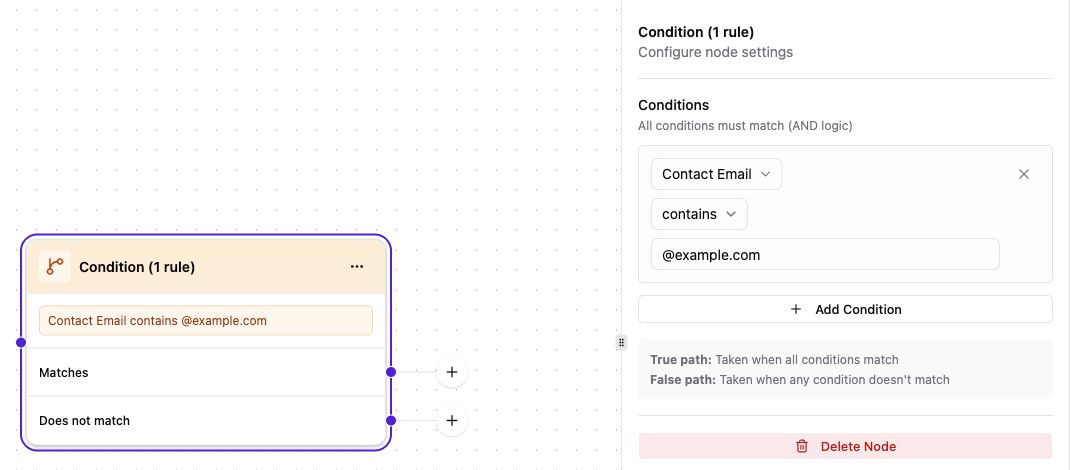
The actual condition node and settings panel, shown with an example email rule.
- Define the rule. Choose the field, comparison, and value in the settings panel.
- Configure both outcomes. Add the intended next step to Matches and Does not match.
Choose a field available to the workflow. For account status or support entitlement, use a trusted contact field or your connected service. Use email-domain matches as routing hints, and keep access decisions in your authenticated service.
Example: route priority requests to your team
This is one possible setup; choose the rules and assignment policy that fit your support process.
- Start with Widget conversation started for the intended agent.
- Add a Condition that matches a trusted priority indicator already available on the contact.
- On Matches, add Set conversation priority and choose High or Urgent as appropriate.
- Add Assign to user and configure the teammate or assignment pool that handles those requests.
- Optionally add Add internal note to explain why the request was routed.
- On Does not match, add Assign to AI if the agent should answer ordinary requests. When the agent later hands off, the When a human is needed setting chooses the teammate.
Review the whole path before activation. This workflow runs once per conversation; use a Customer Widget message received workflow for actions that should repeat on every customer message.
Save and activate
Save Draft or Save records your edits. Activate makes the saved workflow version live. Check for validation messages and resolve them before activation.
Only one workflow can be active for a given agent and event. If another is active, the confirmation identifies which workflow will be paused when you activate the new one. Review that change before confirming.
Try the workflow with a dedicated test agent and test contact before applying it to customer conversations. After activation, send a matching message and a non-matching message. For notifications, use a destination your team expects to receive the test messages.
Testing note: The editor's Test button is currently unavailable. Use the conversation-based check above.
Review what happened
Open the workflow's Run Logs and find the relevant conversation. Use the date and status filters if needed, then choose Inspect.
Review the selected run, its status, and the executed path when available. A completed run means the configured path finished. Open the related conversation to confirm the customer's outcome and any follow-up work.
If a branch behaved unexpectedly, compare its field value with the rule used for that run. Check both matching and non-matching examples before relying on the workflow for routine support.
Change or pause a workflow
Use Versions to preview a saved version or restore it into the current draft. Restoring a version updates the draft; activation is a separate step.
To stop using a workflow for new matching events, choose Pause from the workflow list. Actions already completed remain in place; review existing conversations and runs for any follow-up needed.