

Customer context
Help your agent start with relevant information about the customer.
Customer context gives your agent information from your own service when a conversation starts. That might be a customer's plan, an open order, or an upcoming appointment.
For example, a customer asks when their order will arrive. Your service supplies its latest status so the agent can answer without asking them to repeat information your team already has.
How it works
When a new conversation begins, Chatbyte asks your connected service for the information it should use. That result stays with the conversation. The service can also tell Chatbyte to stop automatic handling when it should not proceed.
| Channel | When the information is requested |
|---|---|
| Widget | When a customer starts a new conversation with a message. Opening the Widget alone does not trigger it. |
| When an incoming email creates a new conversation. | |
| Voice | When a new call is initialized, before automatic handling starts. |
Follow-up messages and email replies use the saved result. Updated settings apply to new conversations. For fresh information during a conversation, use a tool for that lookup.
Open the settings
An organization owner or administrator can configure the connection:
- For a Widget agent, open General Settings and find Customer context.
- For a voice agent, open Behavior → Customer context.
Ask your developer or integration provider for the endpoint and signing secret. These tell Chatbyte where to request the information and let your service verify that the request came from Chatbyte.
Connect and test your service
- Open Configure API connection.
- Enter the API endpoint and Signing secret supplied by your developer.
- Choose Test connection and enter sample information for the channel you want to use.
- Inspect the result. Check both that the connection succeeds and that the returned information matches the sample customer you intended.
- Save the connection.
Connection tests are marked as tests. Ask your developer to use sample data and keep these requests free of actions such as sending messages or changing customer records. After testing, save the connection and enable the intended channels.
The connection is shared across the workspace. Changing its endpoint or secret affects every agent using it. Channel choices and failure behavior are saved separately for each agent.
Choose channels and failure behavior
Set each intended channel to On conversation creation, then choose what happens if the service cannot supply a valid response:
- Continue without API context: let the agent use its saved settings and other available information.
- Stop automatic handling: prevent an automatic response when the connection fails.
Save the changes. Start a new conversation to test them; an existing conversation keeps its original result.
Stop automatic handling pauses the automatic response. Configure human assignment and notifications separately so your team can review conversations that need attention.
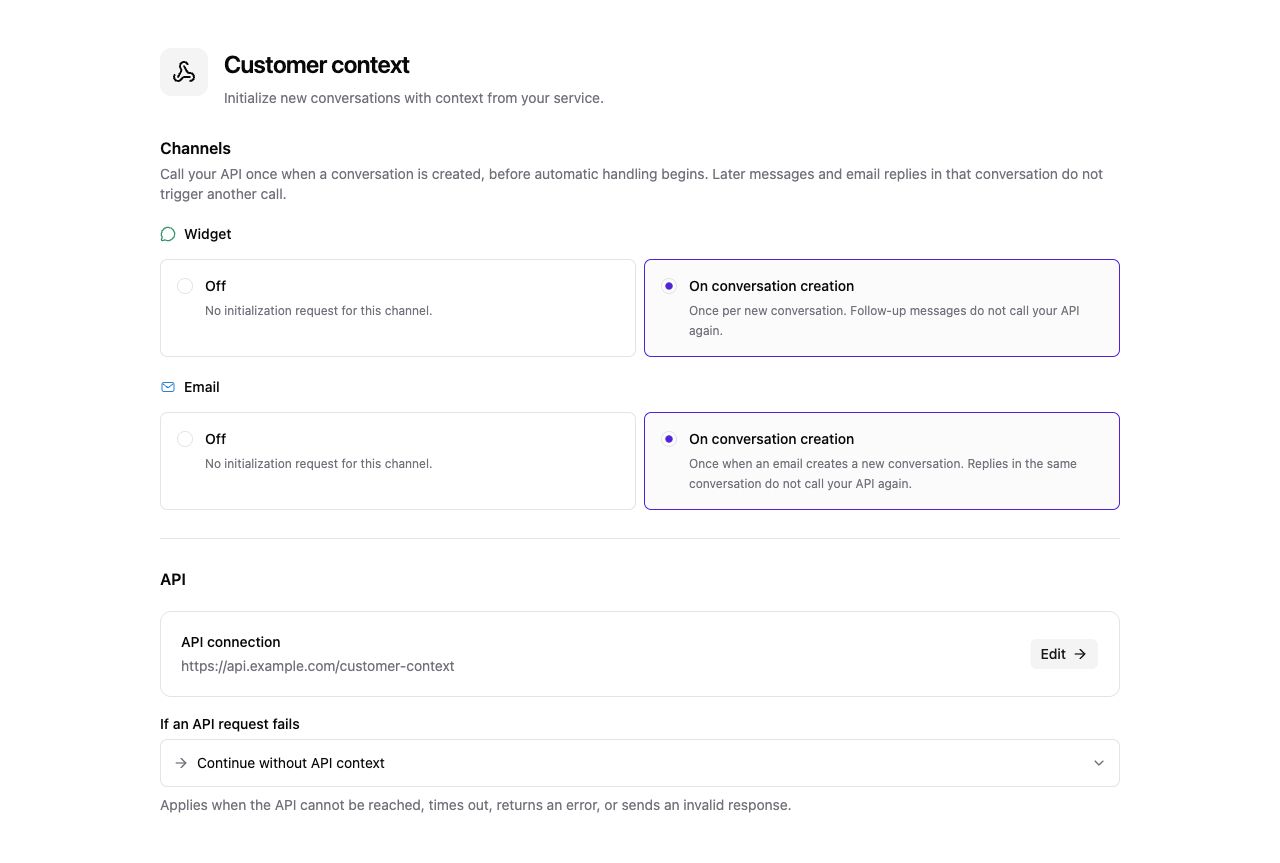
Customer context settings, shown with example connection details. Select the image to open it at full size.
- Enable each channel. Choose On conversation creation for the channels that should receive customer information.
- Manage the connection. Edit opens the endpoint, signing secret, connection test, and API activity.
- Choose the fallback. Decide whether to continue or stop automatic handling when the request fails.
Read API activity
Open API activity from the connection settings to review test and live requests. Check the result, response time, and any diagnostic message.
| Result | What to check |
|---|---|
| Completed | The service supplied a valid response. Check that the information matches the customer scenario you intended. |
| API requested a stop | The service deliberately stopped automatic handling. Confirm that this is the intended behavior. |
| Not sent | The channel may have been off when the conversation started, or the conversation may predate initialization. |
| Failed | Review the error with your developer. Check the endpoint, secret, and response time. |
| In progress | The result is still pending. |
How customer information is used
Customer context supplies information for this conversation; saved contact profiles are managed separately. Your service remains responsible for verifying the customer and returning only information they are allowed to access.
Your developer may call this connection conversation initialization or conversation.init. Those are the technical names for the same setup described here. Give them the implementation guide when connecting your service.