

Work through your Inbox
Find conversations that need attention, reply with context, and give each request a clear next step.
Use Inbox to work through customer conversations with your team. Start with a queue, read what has already happened, then decide who should handle the next step.
Choose the work to handle
- Your Inbox shows work assigned to you.
- Team inbox helps you review the team's conversations.
- Unassigned helps you find conversations that still need a human owner.
- Snoozed holds conversations set aside until later.
- Closed lets you review finished conversations.
- Handled by AI lets you review conversations the agent is handling.
Use Filters to narrow the selected view by Assignee, Status, Handled by, or Agent. Filters change which conversations you see while leaving their owners and status unchanged.
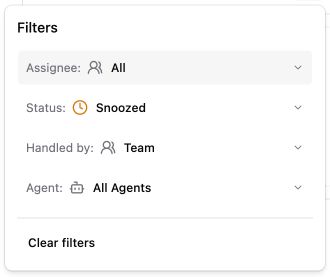
The Inbox filter menu, shown in a sample Snoozed view.
- Choose whose work to see. Filter by a teammate, yourself, an assignment group, or unassigned work.
- Separate status from handling. Status describes progress. Handled by distinguishes the human team from AI.
- Focus on one agent. Use Agent when several agents share your workspace.
Use Sort by to change the order. Last Activity helps you find recently active conversations; Waiting Since, with Longest wait first, helps you work through the oldest waits. A low-activity conversation may still need a reply, so choose the order that matches your task.
Read before replying
Open a conversation and read the latest customer message together with the replies and internal notes above it. Check whether another teammate has already answered or explained the next step.
In Details, check the contact, channel, assigned owner, priority, and available contact fields. Other conversations can help you find related history. Contact fields and customer context show information your workspace has collected or connected. Confirm missing details with the customer or the appropriate source before replying.
On a smaller screen, use View details to open the information that appears beside the conversation on desktop.
Take ownership or involve a teammate
Check Assigned to before acting. For a conversation still handled by AI, choose Escalate and review the confirmation: it stops AI responses and assigns the conversation to you.
For human-handled work, use Assigned to to choose the teammate responsible for the next reply. Assigning work gives it an owner; adding an internal note explains what that person needs to do.
If you want the agent to handle a conversation again, choose AI Agent from the assignment menu when available. Review any confirmation before proceeding. Closing or snoozing a conversation is a separate decision from returning it to AI.
See Set up a reliable human handoff to configure the team's default routing.
Reply or leave an internal note
Check the composer mode before sending:
| Mode | Who receives it |
|---|---|
| Chat or Email | The customer, through the conversation's channel. |
| Internal Note | Your team. Use it for investigation, context, and the next action. |
Use a saved reply as a starting point when appropriate, then check its wording and any inserted fields against this customer's situation. Review attachments and the recipient before sending an email.
Sending replies, internal notes, and handoff actions requires a support agent seat. If the controls explain that a seat is required, ask your workspace administrator to review your access.
Leave a clear next step
| Situation | Next step |
|---|---|
| The customer still needs a reply or action | Keep the conversation Open and make ownership clear. |
| You need to return at a particular time | Snooze it until that time and leave a note explaining what you are waiting for. |
| The request is finished | Close it. Send and close conversation combines your final reply with closing. |
| The work must continue beyond the conversation | Review or create the appropriate task follow-up, and give the work an owner. |
The send menu also offers Send and snooze for 1 day. Use it only when that timing fits the next step.
A snoozed conversation can return when its timer ends or a customer replies. A later reply to a closed conversation can reopen it or start a linked conversation, depending on your workspace's reply-window settings. Check the new message before treating the earlier resolution as final.
Finish a shift with fewer loose ends
Review your open work, unassigned requests, and upcoming snoozed conversations. Make sure each has a responsible teammate and an understandable next action. Use internal notes to record what you checked so the next person does not have to repeat the investigation.
If an AI answer caused the issue, follow Improve an incorrect answer after helping the customer.