

Set up a reliable human handoff
Choose who receives requests, set customer expectations, and test the handoff from both sides.
A handoff should answer two questions: who handles the conversation next, and what the customer should expect. Configure both before relying on AI to pass requests to your team.
This guide covers chat and email conversations. Voice follow-ups use their own tasks and voice settings.
1. Choose the human destination
Open the agent's Assignment & handoff settings. Under Default human assignment, choose how the team receives work:
| Assignment | When to use it |
|---|---|
| Leave unassigned | Your team actively triages the shared human queue. |
| Specific teammate | One person owns this type of request. |
| Distribute among teammates | A group shares the work. Choose Round robin, Random, or Fewest open conversations. |
For distribution, choose the Participants: everyone with a chat seat, selected people, or a team group. A group is a reusable assignment pool. Manage each participant's Inbox access separately through their seat and permissions.
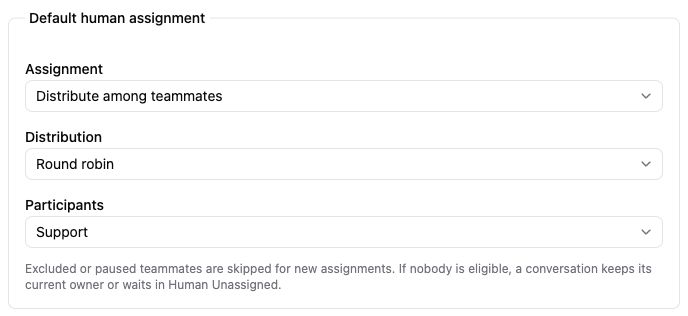
An example that distributes human requests around a Support group.
- Choose how to assign. Select a named teammate, distribution, or the unassigned queue.
- Choose the distribution method. Round robin rotates through eligible participants.
- Choose the people in the pool. This example uses a reusable Support group.
Excluded or paused teammates are skipped for new automatic assignments. If nobody is eligible, a request can wait in Human Unassigned for a teammate to pick up. Make checking the unassigned queue part of the team's routine.
2. Separate first replies from handoffs
New conversations determines who starts handling a new request. Choose This AI agent answers if the agent should respond first.
When a human is needed determines the human destination when the agent passes a request on. Choose Use default human assignment, or Custom human assignment when these requests need a different pool. Without a saved human assignment rule, assign an eligible teammate at random and preserve any existing human assignment.
Reopened conversations determines who handles a customer's message to a Done conversation. Snoozed conversations always stay with their owner.
Under Channel overrides, turn on Use custom rules for a channel when email and the Widget need different handling. Save with Save changes. The updated routing applies to new assignments; existing conversations keep their owner.
3. Explain when to involve the team
In the agent's instructions, describe the situations that need human judgment. For example:
Pass the request to our team when the customer asks for a person, disputes a charge, or needs an exception you cannot confirm. Briefly explain what needs review. Do not claim that a refund or exception has already been approved.
If different specialists handle different requests, AI destination selection can expose selected teammates or groups with an expertise description. Explain when each destination is appropriate. Unavailable destinations fall back to the configured handoff rule.
Use Workflows when the destination should follow an explicit condition rather than an agent's interpretation.
4. Set the message customers receive
Review Human Handoff in General Settings. It provides an example customer preview and agent-specific controls for confirmation style, tone, and expected response. Workspace-wide defaults are under Conversation settings → Human handoff expectations.
Choose the expectation your team can support:
- Time window for a configured duration.
- Custom text for a clear statement such as “by the next business day.”
- Dynamic reply time for an estimate based on recent human reply history.
- No estimate when you cannot give a useful time.
- Workspace default to inherit the shared expectation.
Configure the timezone, business days, and hours if you use Support hours, then review both the during-hours and outside-hours previews. The displayed expectation follows your configured schedule; check teammate availability separately.
Dynamic reply time estimates a response time from recent human reply history, with a fallback when history is limited. Treat it as an estimate when setting customer expectations. A Handoff notice can explain a temporary delay and hide the normal estimate while the notice is shown.
5. Test the customer and teammate experience
- Start a controlled conversation and ask for a human.
- Check the confirmation the customer receives. It should explain the next step without promising an unconfirmed outcome.
- Open Inbox, find the same conversation, and check Assigned to. Confirm that it reached the expected teammate or human queue.
- Reply as a teammate and verify that the customer can continue the conversation.
- Test any channel override separately. Also check the outside-hours preview and the team's process for an unassigned request.
Confirm the conversation's owner in Inbox and the message the customer receives. If the destination differs from your setup, review the routing and teammate access settings, then repeat the test.
Once a human owns the conversation, later customer replies preserve that handling. A teammate can explicitly return it to AI Agent when appropriate. See Work through your Inbox.