

Tasks and follow-ups
Set up the requests your agents should capture, then review, assign, and complete the work.
Tasks turn a conversation into something your team can act on: a callback, an invoice request, a reservation change, or another follow-up. You define what the agent should collect. Your team reviews and completes the work in Tasks.
For example, a caller wants someone to call them back tomorrow. The agent captures the reason and preferred time. A teammate can then pick up the task with the conversation details already attached.
For an end-to-end example, follow Turn a callback request into a follow-up.
Set up your first task type
A task type describes one kind of request. An owner or administrator can create it from Tasks → Task settings → Create task type. If this is your first setup, use Create first task type in the empty Tasks screen.
- Choose a clear Name, such as “Callback request.” You can use Browse presets for a starting point.
- In What should happen, explain when the agent should collect the request and what your team will do next.
- Add Details to capture, such as the reason for calling and preferred callback time.
- Set a default assignee, priority, and urgency if your team needs them.
- Save the task type and check that it is active.
Active task types are available to Widget and email agents. For a voice agent, open Behavior → Tasks, select the task types that agent should use, and save the changes.
Decide what the agent should ask
Each detail can have its own wording and collection rules:
| Setting | What it controls |
|---|---|
| Detail name and What this detail means | What your team needs to know. |
| How to ask | Suggested wording for collecting the answer. |
| If the answer is unclear | How the agent should clarify an ambiguous answer. |
| Ask during call | Whether and how to collect the detail during a voice conversation. |
| Required | Whether missing information needs staff attention after the conversation. |
| If missing | Whether to resolve it later, continue without it, or use a configured default answer. |
“Required” and “Ask during call” are different choices. A detail can be important for staff without forcing the caller through a long question sequence. Use defaults only when the default is a meaningful answer for your workflow.
Say before asking and Say after capture help set expectations. For a reservation request, explain that recording the request is not a confirmed booking and that the team will follow up.
Review requests that need attention
An intake is a captured request that is still being collected, processed, or reviewed. A task is finalized work in the staff queue.
Open Needs attention in Tasks when a request needs more details or review:
- Open the request to see Resolve task intake.
- Check the task type, title, description, and captured details. Fill any required fields that are missing.
- Choose an assignee and adjust priority, urgency, or due date as needed.
- Select Finalize task to put it into the staff queue, or Archive intake if no follow-up is needed.
If the request changed while you were reviewing it, use Load latest details before continuing. That replaces your unsaved edits with the latest version.
A customer update to an existing task can also appear for review. Finalizing that update creates a separate follow-up task and leaves the original task or external ticket unchanged.
Work through the task board
Use Assigned to me to focus on your own work, or Unassigned to find requests waiting for an owner. Search and filter by assignment, voice agent, call phone, priority, or urgency. Each lane can be sorted by priority, newest, oldest, or due date.
| State | When to use it |
|---|---|
| Open | The task is ready to be picked up. |
| In progress | Someone is working on it. |
| Blocked | Work is waiting on information or another action. |
| Completed | The follow-up is finished. |
| Canceled | The follow-up is no longer needed. |
Open a task to review its properties and related records. Where available, Open contact, Open conversation, and Open calls take you back to the customer and the original exchange.
Choose who owns the task
Open Assignee to take the task yourself or choose a teammate. The menu shows each teammate’s current open task count to help you decide.
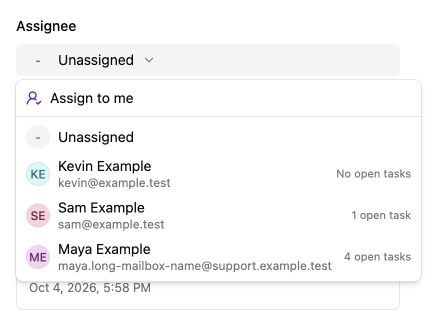
Task assignment, shown with example teammates.
- Take ownership. Choose Assign to me to make yourself the assignee.
- Check open work. Compare the open task counts before assigning a teammate.
Send follow-ups to Linear
In the task type's Assignment and handoff settings, choose Internal task inbox or Create Linear issue. Linear must be connected before you can select its workspace and team.
Check the handoff state after a task is finalized. Handoff pending means delivery is still in progress; Handoff failed needs attention. After resolving the connection problem, use Retry handoff. When Linear owns the follow-up, open the external task to manage it there.
If you are not seeing tasks
- Check that the task type is active and describes the customer request clearly.
- For voice, check the selections in the agent's Behavior → Tasks tab.
- Review Needs attention; the request may still need required details.
- Clear board filters that could be hiding the task.
- Check the original conversation or call to see what the customer actually requested.
For exporting or integrating task data, use the separate API reference.