

Launch your first support agent
Go from a focused support job to a tested chat experience on your website.
This walkthrough sets up an agent that answers common product questions and explains when your team needs to help. Start with one product and a small set of reliable answers.
1. Choose the job
Write down five questions customers frequently ask, such as delivery times, returns, product compatibility, opening hours, and contacting support. Choose the person who will keep these answers up to date.
Open Agents, create your agent, and give it a name your team can recognize.
2. Add instructions and choose languages
In General Settings, write a System Prompt describing the audience, the agent's role, and how to handle uncertainty. For example:
Help customers understand our products and support policies. Answer using the available knowledge. Ask a short follow-up question when the request is unclear. If you cannot confirm an answer, explain that the support team needs to help. Do not promise a refund, booking, or callback time unless it has been confirmed.
Under Language, choose Auto to respond in the customer's language, or Selected languages to choose the languages your team supports. Save the settings.
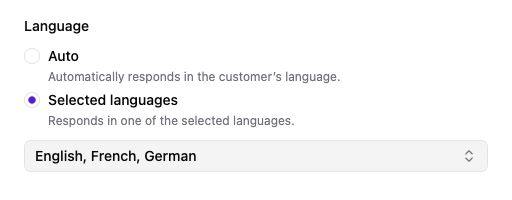
The language controls, shown with three example languages.
- Choose a language policy. Auto follows the customer’s language. Selected languages limits the available choices.
- Choose your supported languages. Open the selector when Selected languages is enabled.
These are chat response settings. A voice agent has separate voice and spoken-language settings in Persona.
3. Add a small, current knowledge collection
Open Knowledge, create a collection for this support topic, and add the relevant website pages, files, or text. Wait for training and publication to finish, then assign the published collection to your agent.
Follow Add and maintain knowledge for the exact steps. Instructions tell the agent how to behave; the collection supplies the facts it can use.
4. Test your five questions
Try the questions from step 1 in the agent's test experience. Also test:
- A vague question that needs clarification.
- A question your knowledge does not answer.
- A request for an exception, such as an unconfirmed refund.
- Another supported language, if applicable.
Compare the answers with your source material. Correct the knowledge when facts are wrong; adjust instructions when tone or handling is wrong. Repeat the same examples after each change.
5. Prepare the Widget
Open Publish → Widget. Set the customer-facing display name, logo, color, and initial message. Add two or three useful starter questions under Content. Use the questions you already tested.
Under Settings, configure the privacy policy link and any allowed-domain restrictions. Save the changes, publish the agent, and give the generated Code snippet to the person who manages your website.
See Customize and install the Widget for each setting.
6. Try the published experience
Visit the actual website, open the Widget, and repeat one common question and one request that needs your team. Check the branding, language, answer, and next step.
Your launch is ready when customers can reach the agent, the answers match current information, and your team knows how to handle unresolved requests. Add customer context, tools, and follow-up tasks as the use case requires them.